The goal: what it looks like at the end
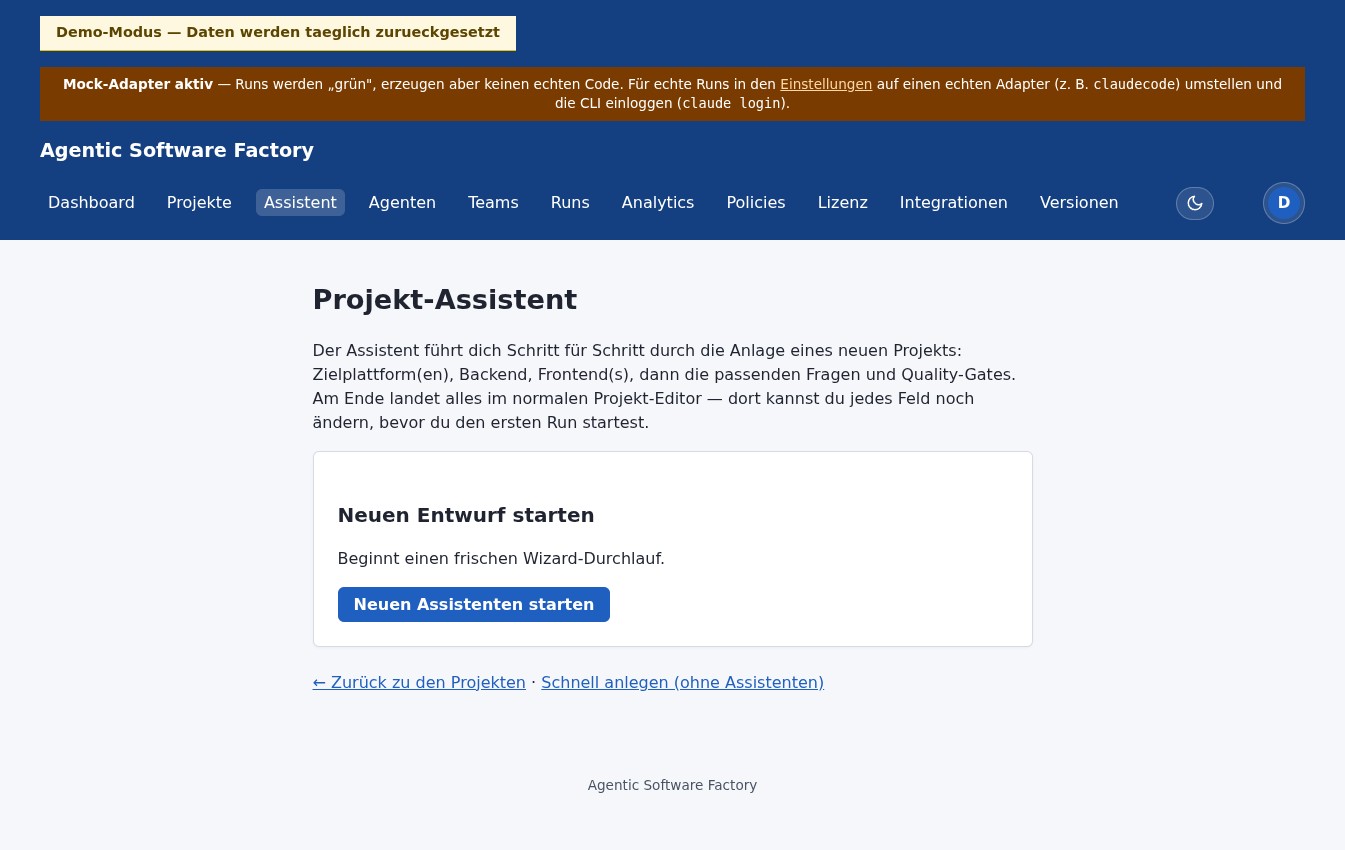
The Software Factory is a local web application. After setup you open it in your browser at http://localhost:8080, sign in and create your first project. A "run" then puts your existing Claude subscription to work in a structured way — with plan, implementation, review and quality gate.
First, understand: subscription vs. API key
At Anthropic these are two separate billing paths — the factory supports both:
Claude subscription (login)
Your Max/Pro subscription via Claude Code's OAuth login. No second account, no separate cost center — the tokens count against your subscription.
API key
ANTHROPIC_API_KEY from the Anthropic console, billed per token, costs on top of the subscription. You can switch at any time.
In subscription mode the factory deliberately removes any API key from the Claude process's environment — so that Claude Code really uses your subscription and doesn't quietly switch to API billing.
Prerequisites
Before you start, you need the following in one environment (WSL or Windows — more on that in a moment):
- JDK 25 (Java 25) — the factory is a Java application.
- PostgreSQL — easiest via
docker compose up -d postgresusing the compose file from the bundle; alternatively a local installation. - Claude Code (CLI) on the same machine, as the same user (check with
claude --version). - An active Claude Max or Pro subscription (or, alternatively, an API key).
- A single-seat license (Community tier) — issued automatically on first use, see below. Not needed for pure testing.
Choose your path
The factory calls the claude CLI as a subprocess and needs its credentials and PATH. That's why the factory and Claude Code must live in the same operating-system world. Decide on one path:
Path A — everything in WSL2
Ubuntu shell under Windows. Claude Code via npm, credentials in ~/.claude, factory JAR in WSL. The smoothest path.
Path B — native on Windows
Everything in PowerShell, credentials under %USERPROFILE%\.claude, factory JAR native with JDK 25.
claude CLI isn't inside, so only the mock adapter works there. For real runs you start the JAR directly (step 5 below). Postgres is fine to run in a container.
Path A — everything in WSL (recommended)
All steps run in a WSL2 Ubuntu shell as your user.
-
Install JDK 25 and Claude Code
Claude Code comes as an npm package. Then sign in once (opens the browser).
sudo apt update && sudo apt install -y openjdk-25-jdk
npm install -g @anthropic-ai/claude-code
claude --version
claude /login
-
Get the distribution bundle
The factory is a licensed product — there is no public repo. After purchase or trial unlocking you receive the distribution bundle: the signed
softwarefabrik.jar, adocker-compose.yml(for Postgres) and a sample.env. Unpack it and enter the folder:tar xzf softwarefabrik-einzelplatz.tar.gz cd softwarefabrik
Source access for building yourself is available on request.
-
Create a
.env(three mandatory secrets)The master key must be at least 32 bytes Base64 — generated inline here.
SOFTWAREFABRIK_ADMIN_PASSWORD=your-admin-password
SOFTWAREFABRIK_DB_PASSWORD=your-db-password
SOFTWAREFABRIK_SECRETS_MASTER_KEY=$(openssl rand -base64 32)
-
Start Postgres
Easiest via Compose (just the database, not the factory).
docker compose up -d postgres
-
Start the factory and open it
Then open
http://localhost:8080and log in with the admin account.java -jar softwarefabrik.jar # with source access, alternatively: ./mvnw spring-boot:run
Path B — everything native on Windows
All steps run in PowerShell as your Windows user, with JDK 25.
-
Install Claude Code
Via npm; on Windows the command is
claude.cmd. Sign in once.npm install -g @anthropic-ai/claude-code claude --version claude /login
-
Get the distribution bundle
No public repo — after unlocking you download the bundle (signed
softwarefabrik.jar+docker-compose.yml+ sample.env) and unpack it. JDK 25 must be installed; source access for building yourself is available on request.tar xzf softwarefabrik-einzelplatz.tar.gz cd softwarefabrik
-
Create a
.env(three mandatory secrets)Generate the master key (at least 32 bytes Base64) in PowerShell like this:
[Convert]::ToBase64String((1..32 | ForEach-Object { Get-Random -Maximum 256 }))SOFTWAREFABRIK_ADMIN_PASSWORD=your-admin-password SOFTWAREFABRIK_DB_PASSWORD=your-db-password SOFTWAREFABRIK_SECRETS_MASTER_KEY=<base64-key-from-above>
-
Start Postgres
Use Docker Desktop or a local Postgres installation.
docker compose up -d postgres
-
Start the factory and open it
Then open
http://localhost:8080and log in with the admin account.java -jar softwarefabrik.jar
USERPROFILE, APPDATA, …) through to Claude and defaults automatically to claude.cmd. If your installation lives at a different path, set SOFTWAREFABRIK_CLAUDECODE_COMMAND to the full path (e.g. of a claude.exe).
Wire in your subscription
These steps apply to both paths — only the credentials path differs.
-
Sign in once
If not already done above. The browser login goes against your subscription; the credentials land under
~/.claude(WSL) or%USERPROFILE%\.claude(Windows) and are kept current by Claude Code itself.claude /login
-
Set the auth mode to "subscription"
In the
.env, before the factory starts.SOFTWAREFABRIK_CLAUDECODE_AUTH_MODE=subscription
-
No API key in the environment
A set
ANTHROPIC_API_KEYwould take precedence over the subscription in Claude Code. In subscription mode the factory strips it from the subprocess anyway — still, keep it out of the environment. -
(Optional) Different credentials directory
Only needed if your credentials aren't at the default location. Since v0.31 the factory takes only
.credentials.jsonfrom there: MCP servers, plugins and hooks from your own Claude configuration do not apply to agent runs — every run gets an empty HOME.SOFTWAREFABRIK_CLAUDECODE_CONFIG_DIR=/path/to/.claude
Also with OpenAI Codex (ChatGPT subscription)
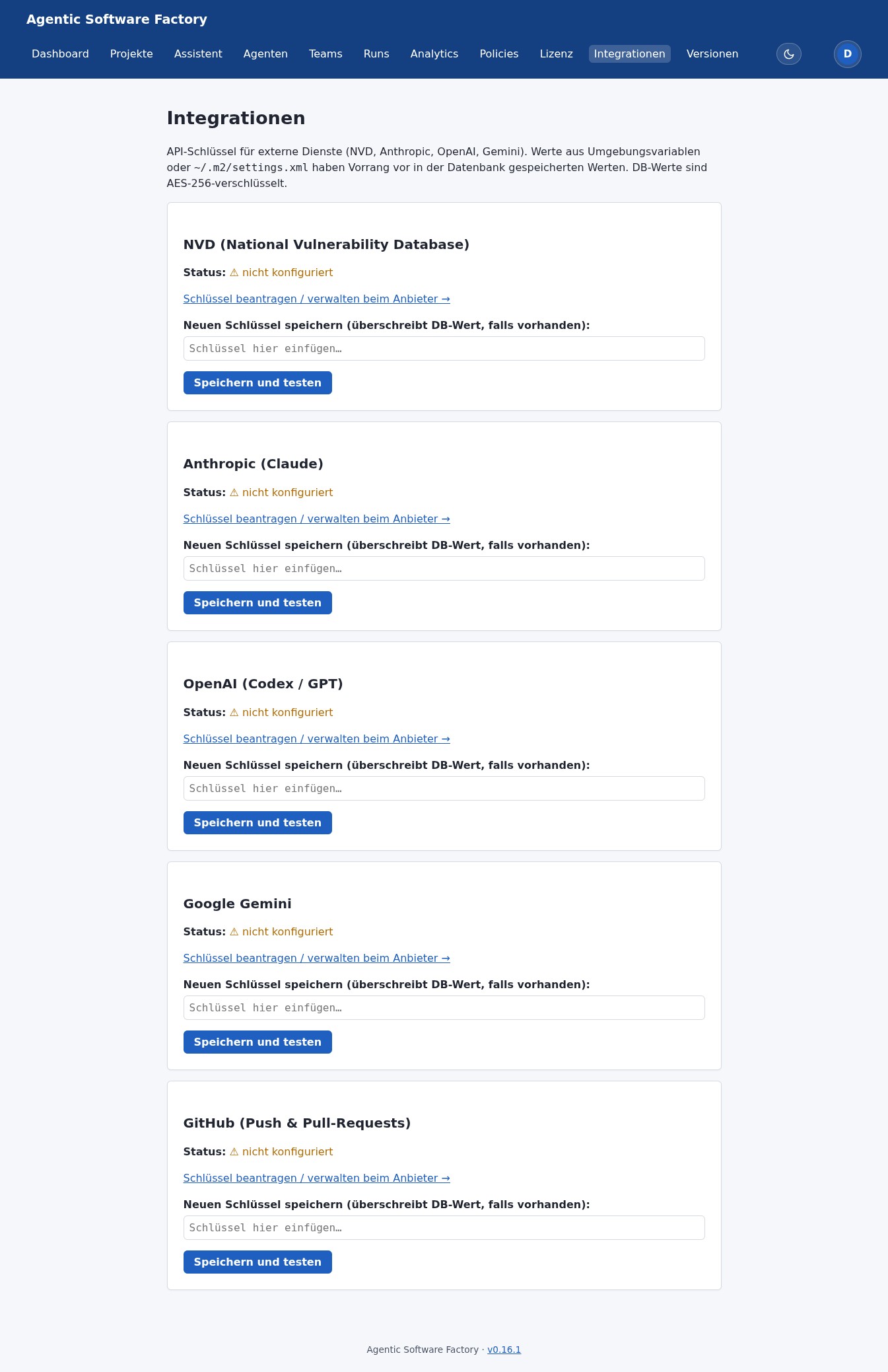
The same principle exists for OpenAI Codex: instead of an OPENAI_API_KEY the factory uses your signed-in ChatGPT Plus/Pro subscription ("Sign in with ChatGPT"). The steps mirror the Claude subscription 1:1.
-
Sign in once
Browser login against your ChatGPT subscription. The credentials land under
~/.codex/auth.json(WSL) or%USERPROFILE%\.codex\auth.json(Windows).codex login
-
Set adapter + auth mode
Via
.envor in the Settings. A setOPENAI_API_KEYwould silently redirect billing — in subscription mode the factory actively strips it.SOFTWAREFABRIK_EXECUTION_ADAPTER=codex SOFTWAREFABRIK_CODEX_AUTH_MODE=subscription
-
(Optional) Different credentials directory
Only needed if not at the default location. The factory takes only
auth.jsonfrom there; yourconfig.toml(including MCP servers configured in it) does not apply to agent runs. The auth mode is also switchable in the Settings UI and takes effect without a restart (max. 5 min cache).SOFTWAREFABRIK_CODEX_CONFIG_DIR=/path/to/.codex
License — single seat
The single seat uses the Community tier. For productive operation you enable the license module:
SOFTWAREFABRIK_LICENSE_V1_ENABLED=true
- 30-day lease, automatically renewed on every start of the factory.
- Offline + grace: if the license server is unreachable, the factory keeps running on the existing lease plus a 30-day grace period — startup is never blocked.
- No account/login: first issuance happens without signing in, using only an email and a device fingerprint.
- Offline verifiable: lease tokens are Ed25519-signed and verified locally.
- When the license has expired, only new runs are blocked — the rest of the UI stays usable.
Billing — honestly
Since mid-2026 Anthropic bills programmatic subscription use against a separate monthly allowance at API prices — no longer unlimited within the subscription.
- Single seat: convenient, no API billing setup; for moderate use the allowance is enough.
- Sustained load: an API key may be more economical — you keep both options via the switch.
EINZELPLATZ_ABO (setting betrieb.modus), which allows the subscription login. For team operation there is TEAM_API_POOL, which disables the subscription login and enforces a stored API key (pool billing).
Multiple users with their own subscription
For bring-your-own-subscription the backend authenticates each user into a dedicated credentials directory and routes the run there. The foundation (a per-run selectable directory) is in place; per-user management is the next step. Everyone pays from their own allowance.
Done — how to verify
Restart the factory
So that the environment variables from the
.envtake effect.Create a project and start a run
Create a project via the assistant, then start a run with adapter
claudecode.Check the result
The run completes without any API key configured — the tokens count against your subscription. Once the yellow "mock adapter active" banner is gone, everything runs for real.